Apps Overview
Our apps are designed by Speech-Language Pathologists who have many years of experience working with children and adults who have language, speech, and attention issues. As you can see in the image below, our apps have a clean distraction-free screen so you can focus on what’s important—good speech production. Our apps use colorful pictures to grab your client’s attention but the most important part of the app is the built-in voice recorder. Clients can hear their own voice, compare it to our production, hear the difference, and make corrections. After the SLP explains how to make the correct sounds, clients quickly become adept at changing their own speech.
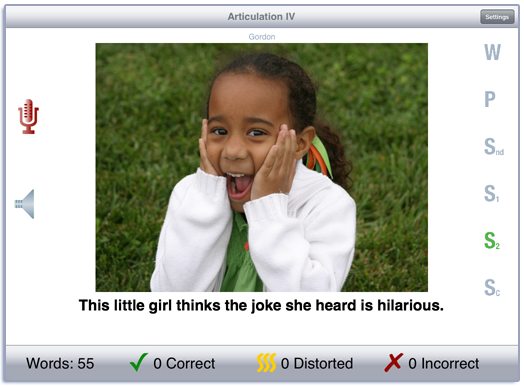
The apps all have a similar design, so once you are familiar with the options and scoring for one app, you’ll be able to easily navigate all of the others. The main work area of the apps has a picture or pictures, record and playback icons, and a scoring toolbar.
Types of Apps
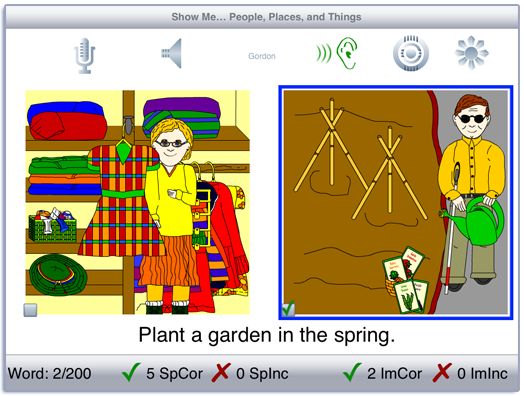
The forced-choice apps, like Show Me… People, Places, and Things, have two or four pictures on the screen and the auditory prompt is “Show Me” followed by the target label. Tap on a picture to hear the label of the picture. Double-tap the picture and then listen to a sentence or phrase about the picture. The text can be turned on and off with the sunburst at the top right of the screen.
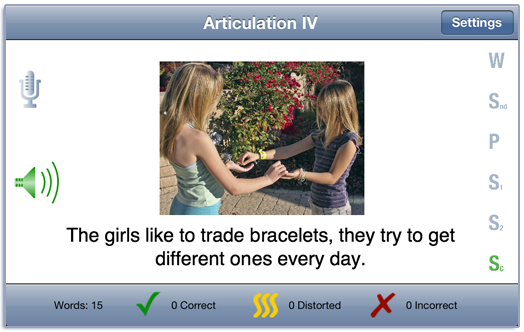
The “Speech Practice” style apps like Articulation IV, have one picture on the screen and four to six word, phrase, and sentence icons on the side of the screen. Tap on a letter on the screen to hear our production. Use the microphone icon to imitate our production and the speaker icon to check your production. If you wish, you can score the production in the scoring toolbar at the bottom of the screen.
App Categories
The apps are loosely organized into 8 groups: Speech/Articulation Sound production; Phonology; Forced Choice; Social Skills; Language; and Literacy; Attention; and En Español (Spanish Language). There is significant overlap between groups. For example, even though the words in Phonology are based on phonological principles, the app goes beyond that and includes the target word in phrases and sentences. The Show Me… Social app uses polite expressions in natural language settings. It could also be used to learn the forced-choice format, auditory comprehension, language expression or articulation. The En español group has apps that have been designed solely from the Spanish phonological system as well as some popular apps that have been translated from English.
Settings
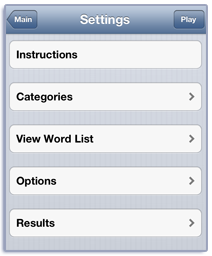
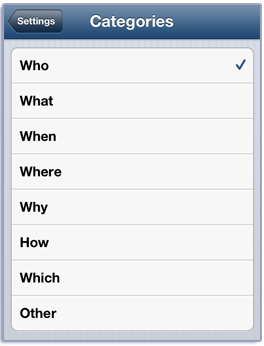
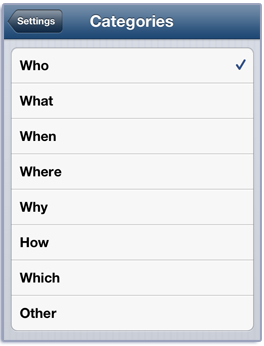
The Settings button allows you to view the instructions, select words from specific categories, and change the scoring options.
Options
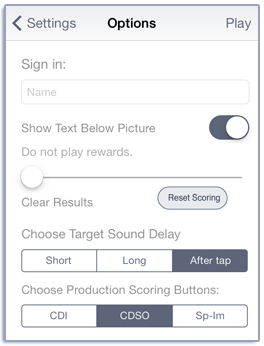
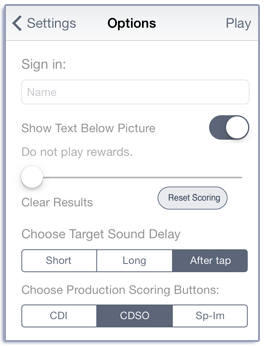
The options are similar between apps. All of the apps let you sign in with a student or client name. The app will remember the name and display it with results. All apps let you reset the scoring—for new clients or a new day. Forced choice apps allow you to score the correct choice of picture by tapping on a small checkbox on the lower left corner of the picture. You can also choose to have either the label or the sentence follow the “Show Me” prompt. The speech-practice style apps let you decide whether text is shown below the picture. Apps like Learning Sight Words let you decide the delay between showing the word on the screen and the auditory prompt.
Scoring Speech Sound Productions
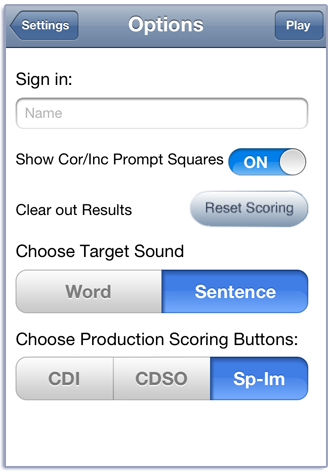
Most apps will allow you to choose between three speech production scoring methods. CDI has Correct, Distorted, and Incorrect scoring buttons in the scoring toolbar. CDSO has Correct, Distorted, Substituted, and Omitted scoring buttons in the scoring toolbar. Sp-Im has Spontaneous Correct, Spontaneous Incorrect and Imitative Correct, Imitative Incorrect scoring buttons in the scoring toolbar.
View and Print Results
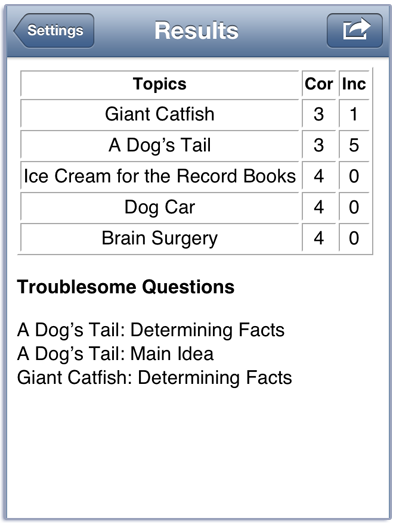
The results for each session are available in the app and can also be viewed later using iTunes.
Email Results
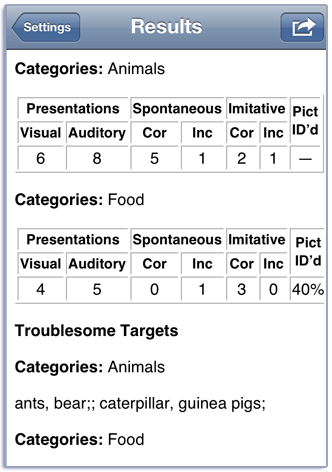
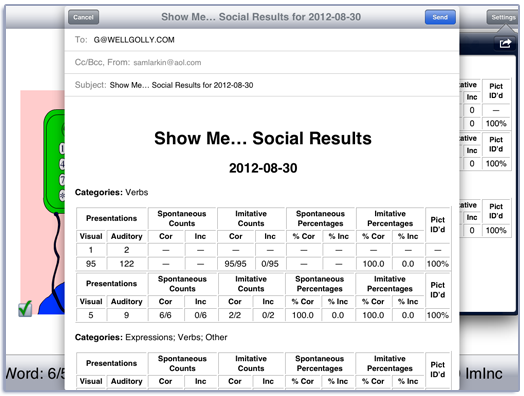
Detailed results for each session can be mailed from within the app. An example of emailing results is shown below. Note that we’ve done some calculations of percent correct and incorrect for you.
Features of Learning Fundamentals Apps
All of our apps track client progress during the session and store the results with the app. Results can be printed or emailed during the session and can be accessed later using iTunes. All of the apps have options that let the user customize the behavior of the app.
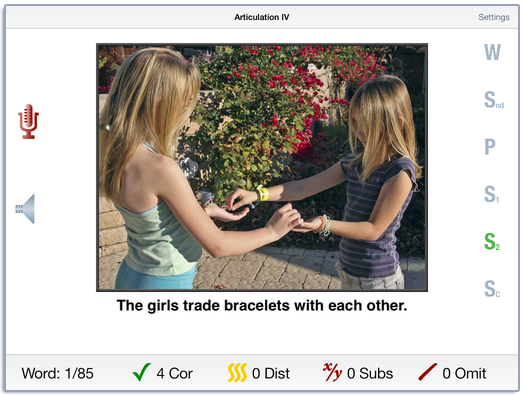
As you can see in the image above, our apps have a clean distraction-free screen so you can focus on what’s important—good speech production. This screen from Artic IV has most of the features found in our apps. You can click on the letters on the right to hear the target sound in a word or with the target sound exaggerated. Then use the record and playback icons on the left to practice. The student or the SLP can score the production using the icons on the bottom of the screen. The rest of the buttons on the right provide a speech model of the sound in a phrase and sentences of increasing complexity. Since every SLP is different, we offer lots of options to customize the app.
Speech Practice Style Apps
Our Artic and Phonology apps display a picture and have buttons for several models of good speech. The objective in these apps is for the client to listen to our production, then use the microphone to record and play back their speech.
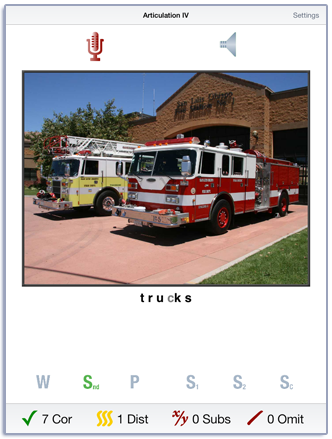
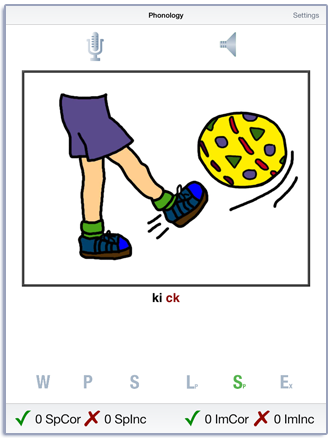
The client or the SLP can score the production using the icons at the bottom of the screen. The default method for most apps is Correct, Distorted, Substituted, and Omitted. Phonology apps have Spontaneous Correct/Spontaneous Incorrect and Imitative Correct/Imitative Incorrect as the default. Clinicians can change the default scoring in the Options.
More Speech Practice Style Apps
The speech-practice format is very flexible and we use it in in many of our apps.
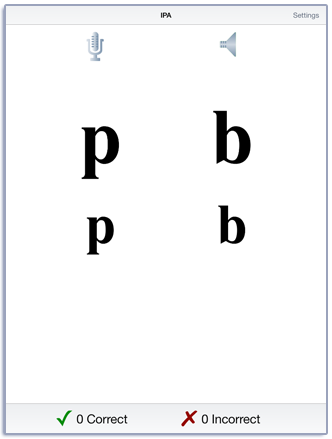
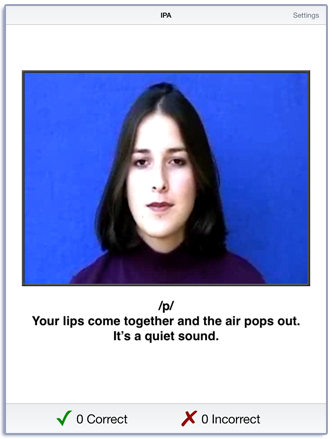
IPA for SLPs uses this format to display text and video.
Random Targets and Foils
These screens are examples of apps where the target is randomly placed on the screen with a number of foils. The user can choose the number of targets and foils, and the level of difficulty, or let the app automatically increase the level of difficulty and number of foils as they successfully complete the screens.
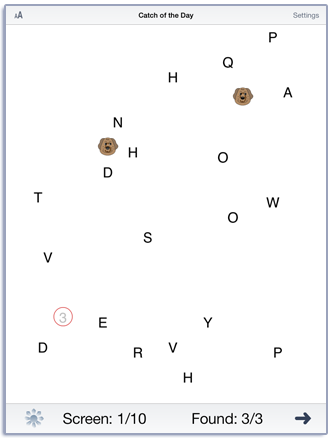
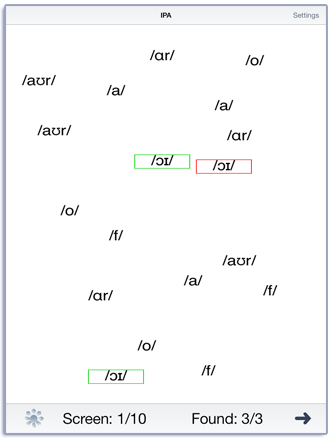
Visual scanning is an attention activity that we use in Catch of the Day and to practice finding IPA symbols. Clicking on the sunburst at the bottom of the screen highlights the items that are not yet selected.
Quizes
The Reading Comprehension apps use the quiz format to display a story and ask questions about the story.
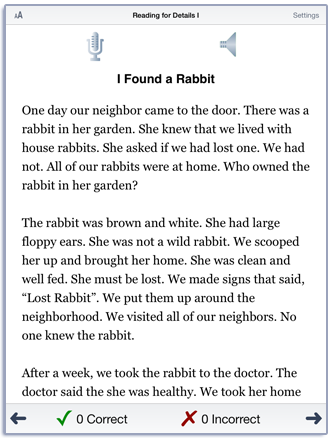
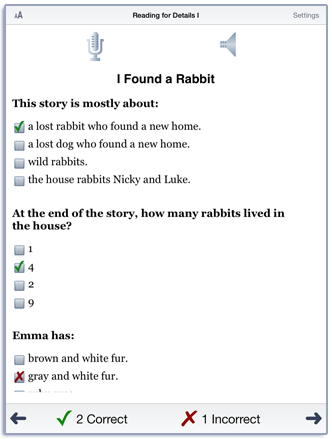
Our quiz apps have a story on the first page and questions about the story on the second page.
Forced Choice Apps
We have a lot of forced-choice apps where the client listens to the prompt and picks one of the items.
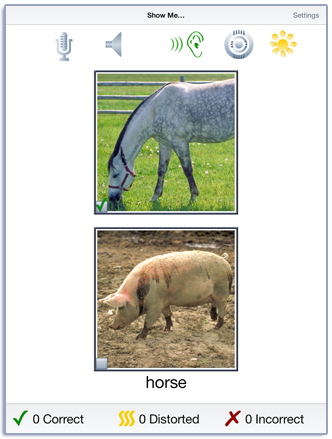
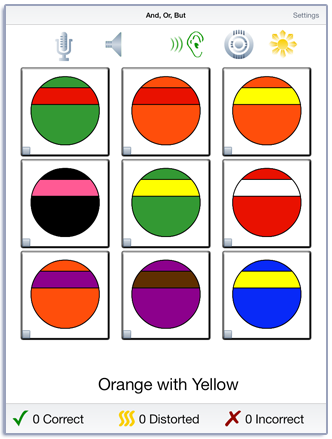
Most of the forced-choice apps have a field of two. Show Me…Colors, Numbers, and Shapes starts with a field of two and has a more difficult level with four items. The screen on the right is from And, Or, But. This app requires discrimination with multiple variables and has up to nine items on the screen.
Vocabulary Lookup
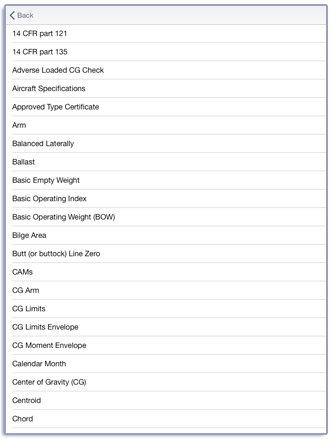
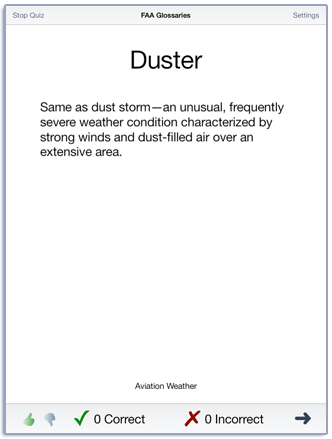
We also have a set of vocabulary apps that allow quick lookup of terms and self-quizzing on the vocabulary.
Adding Your Own Text
You can now add your own text to Picts for SLPs. One of the top things on our To-Do list is to allow users to add their own text to more of the speech-practice apps.
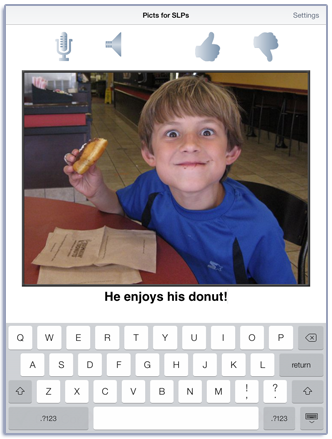
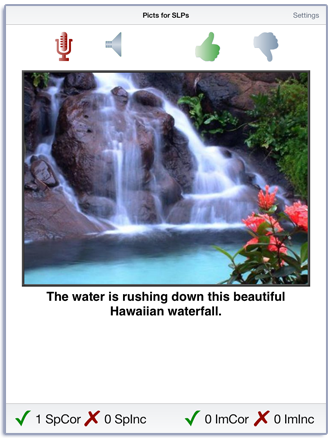
Picts for SLPs has some default text with each picture to give you an idea of what you are seeing—you may not know that the animal in the picture is a springbok or a gerunuk. Likewise, you might not recognize the carburator or engine cylinder on an airplane. You can put your own phrase or sentence into the text by tapping on the text and typing your own text in place of the original. If you are using iOS7 or greater, the device can speak the text.
Providing Feedback
We use alerts to provide feedback when it will be useful to the client.
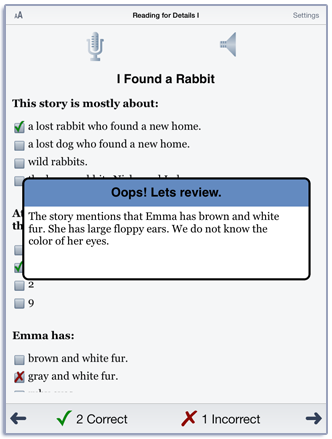
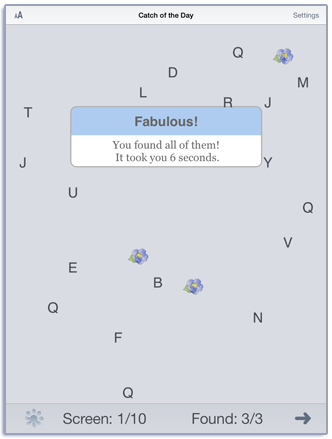
In most cases, the user can use the options to decide whether to view the alerts.
Settings
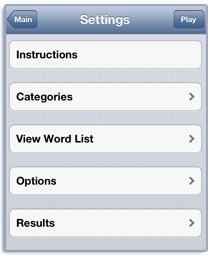
The Settings button allows you to view the instructions, select words from specific categories, and change the scoring options.
Options
The options are similar between apps. All of the apps let you sign in with a student or client name. The app will remember the name and display it with results. All apps let you reset the scoring—for new clients or a new day. Forced choice apps allow you to score the correct choice of picture by tapping on a small checkbox on the lower left corner of the picture. You can also choose to have either the label or the sentence follow the “Show Me” prompt. The speech-practice style apps let you decide whether text is shown below the picture. Apps like Learning Sight Words let you decide the delay between showing the word on the screen and the auditory prompt.
Scoring Speech Sound Productions
Most apps will allow you to choose between three speech production scoring methods. CDI has Correct, Distorted, and Incorrect scoring buttons in the scoring toolbar. CDSO has Correct, Distorted, Substituted, and Omitted scoring buttons in the scoring toolbar. Sp-Im has Spontaneous Correct, Spontaneous Incorrect and Imitative Correct, Imitative Incorrect scoring buttons in the scoring toolbar.
View and Print Results
The results for each session are available in the app and can also be viewed later using iTunes.
Email Results
Detailed results for each session can be mailed from within the app. An example of emailing results is shown below. Note that we’ve done some calculations of percent correct and incorrect for you.
Our apps now have rewards!
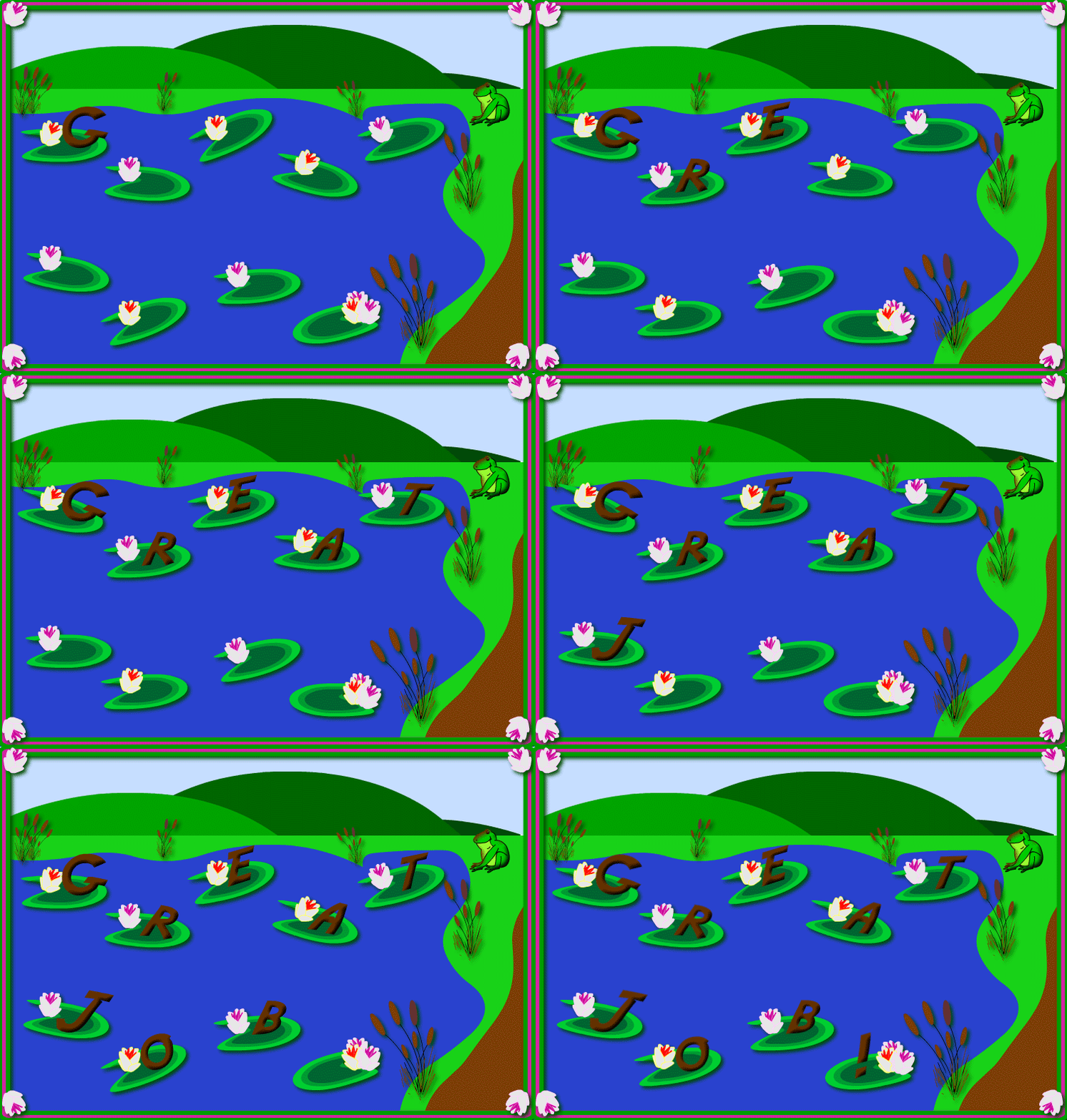
We now have 12 simple rewards that will play with music. If the clinician wants to use rewards, the options screen, can be used to set the frequency. Or surprise them by having the reward play randomly.
Universal App
All of the apps work on iPhone®, iPad®, and iPod touch® running iOS5 or greater. Because of the different screen sizes and operating systems there are slight differences. On older iPhones, there is not enough room on the device in portrait mode to show text below the picture in forced choice apps. The iPhone 5, iPhone 6, and newer iPod touch do have enough room for text so you will see text on those devices. There are also differences in appearance when in portrait or landscape mode. For most apps, we find that portrait mode works best on iPhone and iPod and landscape mode works best on iPad. And apps running on iOS7 or later have a different look and feel than apps running on earlier versions of iOS.
You can see all of the apps from Learning Fundamentals at the App Store.